
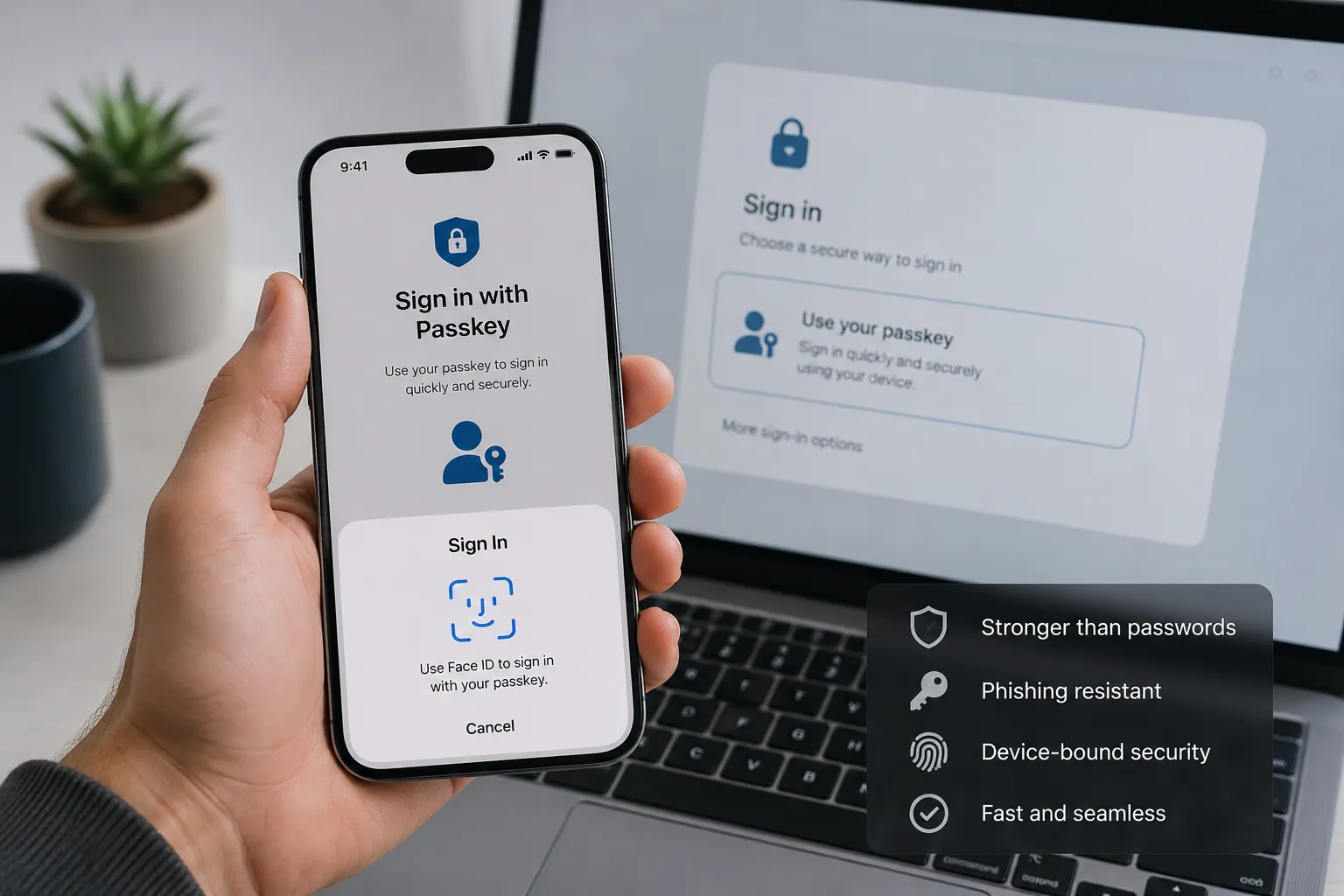
Passkeys replace passwords with a secure digital credential stored on your device or in a credential manager. You sign in using the same fingerprint, face scan, PIN or pattern that unlocks your phone or computer.
The important difference is not convenience alone. Passkeys are designed to resist phishing, password reuse, credential stuffing and many common account-takeover attacks.
However, moving to passkeys requires a sensible recovery plan. Users should understand where their credentials are stored, how synchronization works and what happens if a device is lost.

In This Guide
- What a passkey is
- How passkeys work
- Passkeys versus passwords
- Why passkeys resist phishing
- How to set up passkeys safely
- What happens if a device is lost
- Passkeys for businesses
- Frequently asked questions
What Is a Passkey?
A passkey is a digital sign-in credential based on public-key cryptography. It allows a person to access an app or website without entering a traditional password.
The user normally approves the login with:
- A fingerprint
- Facial recognition
- A device PIN
- A screen-lock pattern
- A compatible hardware security key
According to the FIDO Alliance, a passkey is a FIDO authentication credential tied to a particular account and online service.
Key point: Your fingerprint or face is not normally sent to the website. Biometric verification happens locally on your device, which then uses the passkey to approve the login.
How Do Passkeys Work?
When a passkey is created, the device or credential manager generates a matched pair of cryptographic keys:
- Private key: Remains protected on your device, credential manager or hardware security key.
- Public key: Is registered with the website or application.
The private key is not shared with the service during normal registration or sign-in.
The Sign-In Process
- You open a website or application that supports passkeys.
- The service sends a unique digital challenge to your device.
- You approve the request with your fingerprint, face or device PIN.
- Your private key signs the challenge locally.
- The service verifies the response using its stored public key.
- Access is granted if the cryptographic verification succeeds.
This process is described in greater technical detail by the FIDO Alliance’s passkey documentation.
Where Is a Passkey Stored?
Depending on the user’s setup, a passkey may be:
- Synced through a platform credential manager
- Saved in a compatible password manager
- Stored only on one device
- Stored on a physical FIDO security key
Synced passkeys improve convenience across devices. Device-bound passkeys can provide tighter control for high-security environments, although they require more deliberate backup and recovery planning.
Passkeys vs. Passwords: What Is the Difference?
| Feature | Traditional Password | Passkey |
|---|---|---|
| What the user remembers | A secret word or phrase | Nothing new; the user unlocks a trusted device |
| Information stored by the service | A password hash | A public key |
| Phishing resistance | Low unless protected by stronger authentication | High because the credential is linked to the legitimate service |
| Credential reuse | Common user mistake | Each credential is unique to an account and service |
| Credential stuffing risk | High when passwords are reused | Substantially reduced |
| Sign-in experience | Type a password and possibly enter a code | Approve with a face, fingerprint, PIN or security key |
| Recovery | Password reset through email, phone or support | Synced credentials, another enrolled device or the service’s recovery process |
Are Passkeys Better Than Strong Passwords?
For most consumer accounts, passkeys provide stronger protection against phishing and password reuse. They also reduce the need to create and remember separate passwords.
A unique password stored in a reputable password manager is still a sound option when passkeys are unavailable. The goal is not to abandon good password hygiene overnight. It is to replace vulnerable sign-in methods gradually and safely.
Why Passkeys Are Resistant to Phishing
A phishing page can imitate a company’s logo, colors and login form. It can then capture any password the victim types.
A passkey behaves differently. It is cryptographically associated with the legitimate website or application for which it was created.
If an attacker creates a convincing copy on a different domain, the browser or operating system will not provide that fake domain with the credential registered for the legitimate service.
Google’s current passkey documentation identifies this website-specific design as the reason users cannot be tricked into using a passkey on a deceptive site.
What Passkeys Do Not Prevent
Passkeys are powerful, but they do not solve every security problem. Users can still be affected by:
- Malware running on an unlocked device
- Scammers manipulating an account-recovery process
- A stolen device protected by a weak PIN
- Malicious browser extensions or applications
- Fraudulent payment or information requests after login
- Sessions stolen through unrelated software vulnerabilities
Passkeys strengthen authentication. They do not replace device security, software updates, fraud awareness or careful account recovery.
Video: Understand Passkeys in Four Minutes
This explainer demonstrates how passkey registration and passwordless sign-in work.
How to Set Up a Passkey Safely
The setup process varies by provider, but the underlying steps are similar.
1. Secure the Device First
Before creating passkeys:
- Install current operating-system and browser updates.
- Use a strong device PIN rather than an obvious number.
- Enable biometric protection where appropriate.
- Turn on device encryption if it is not already active.
- Activate remote device-location and remote-wipe features.
The Federal Trade Commission recommends installing software updates promptly because they frequently contain important security fixes.
2. Check Your Recovery Information
Confirm that the account’s recovery email address and telephone number are current. Remove addresses, devices or numbers you no longer control.
3. Open the Official Account Settings
Do not follow an unexpected email link claiming that you must create a passkey immediately. Open the service’s official application or type its known address into your browser.
4. Find the Security or Sign-In Section
Look for an option such as:
- Passkeys
- Passwordless sign-in
- Security keys
- Ways to sign in
- Two-step verification
5. Create the Passkey
Follow the on-screen instructions and approve creation with your device’s normal unlocking method.
6. Verify That It Works
Sign out and test the new login method while you still have access to your existing recovery options.
7. Review Existing Sessions
Remove unfamiliar devices and sign out of sessions you no longer use. Creating a passkey does not automatically prove that every existing session is legitimate.
What Happens If You Lose Your Phone?
Losing a phone does not necessarily mean losing every passkey. The outcome depends on how the credential was stored.
If the Passkey Was Synchronized
A synced passkey may become available on another authenticated device connected to the same credential manager. You may also regain access after securely restoring your platform account.
If the Passkey Was Device-Bound
You may need:
- Another enrolled device
- A backup security key
- A recovery code
- The website’s identity-verification process
- A fallback password with multi-factor authentication
Actions to Take After Losing a Device
- Use the platform’s lost-device or remote-lock service.
- Sign in from a trusted device.
- Review the account’s registered passkeys.
- Remove the lost device where appropriate.
- Review recent account activity.
- Contact the mobile carrier if the SIM is also missing.
Do not delete your only working sign-in method until you have successfully tested another recovery route.
Can Someone Use Your Passkey If They Steal Your Phone?
A properly secured phone normally requires the thief to defeat its screen lock before using stored passkeys.
The practical risk therefore depends heavily on the strength of the device PIN and how quickly the owner reports, locks or remotely wipes the device.
For better protection:
- Avoid four-digit PINs when stronger options are supported.
- Do not use birthdays, repeated digits or simple sequences.
- Hide the screen when entering a PIN in public.
- Enable automatic locking after a short period.
- Keep recovery codes somewhere separate from the phone.
Can Passkeys Be Used Across Different Devices?
Yes. Cross-device access can work in several ways.
A credential manager may synchronize passkeys between compatible devices. A user may also approve a login on a nearby computer by scanning a QR code with a phone that holds the passkey.
The exact experience depends on the operating system, browser, password manager, account configuration and service provider.
Before committing to one ecosystem, confirm that your preferred credential manager supports every platform you regularly use.
How Businesses Should Introduce Passkeys
A successful passkey rollout is partly a technical project and partly a user-experience project. Simply adding a “Create passkey” button is not enough.
Start With High-Risk Accounts
Prioritize:
- Administrators
- Finance and payroll staff
- Developers with production access
- Executives
- Customer-support teams with account-reset privileges
- Employees with access to sensitive personal information
Keep a Controlled Transition Period
Allow passkeys to operate alongside existing authentication during the initial rollout. Measure successful enrollment, login completion, recovery requests and support tickets before removing fallback methods.
Protect the Recovery Process
An organization can implement excellent passkey authentication and still remain vulnerable if support staff can reset an account after answering a few easily researched questions.
Recovery should use strong identity verification, clear audit logs, notification of security changes and additional review for privileged accounts.
Support More Than One Passkey
Users should be able to register multiple authenticators where policy allows. For example, an employee might enroll both a company laptop and a hardware security key.
Name Credentials Clearly
Display recognizable labels such as “Office MacBook,” “Personal iPhone” or “Backup security key.” Clear naming makes security reviews and lost-device removal easier.
Do Not Treat Biometrics as Server Data
The application normally receives proof that the device approved a cryptographic operation. It should not receive or store the user’s raw fingerprint or facial data.
Passkey Deployment Checklist for Organizations
| Area | Required Action | Common Mistake |
|---|---|---|
| Enrollment | Explain what users are creating and where it will be stored | Showing an unexplained browser prompt |
| Compatibility | Test supported browsers, devices and credential managers | Testing only one operating system |
| Recovery | Design and test lost-device recovery | Leaving weak email or support-based resets |
| Security | Require stronger protection for privileged accounts | Applying the same controls to every risk level |
| Operations | Log enrollment, removal and recovery events | Recording only successful logins |
| User experience | Provide clear credential names and management tools | Making users contact support to remove a device |
Should You Switch to Passkeys Now?
Using passkeys is a sensible choice when a trusted service supports them and your recovery information is current.
Begin with valuable accounts such as primary email, cloud storage, financial services and major platform accounts. These accounts can often be used to reset access elsewhere, making their protection especially important.
Use this order:
- Secure and update your devices.
- Verify account recovery information.
- Create the passkey through official settings.
- Test the new login method.
- Add a second recovery or authentication option.
- Review connected devices and active sessions.
- Remove obsolete credentials only after testing recovery.
For more practical digital-safety coverage, visit the ZOBUZ technology section and explore articles filed under cybersecurity.
Final Verdict
Passkeys are a meaningful security improvement, not merely a faster login feature. They remove the reusable secret that makes traditional passwords vulnerable to phishing and credential theft.
The safest approach is gradual adoption supported by secure devices, multiple recovery options and regular account reviews.
When implemented correctly, passkeys can make accounts both easier to use and considerably harder to steal.
Frequently Asked Questions
Is a passkey the same as a password?
No. A password is a secret that the user enters and the service verifies. A passkey uses a cryptographic key pair. The private key remains protected by the user’s device or credential manager.
Are passkeys safer than passwords?
Passkeys are generally safer against phishing, password reuse and credential-stuffing attacks. Overall security still depends on device protection and the account-recovery process.
Does a website receive my fingerprint?
Normally, no. Biometric verification happens locally on the device. The website receives cryptographic proof that the sign-in request was approved.
Can passkeys be hacked?
No authentication method eliminates every threat. Passkeys substantially reduce several common attacks, but malware, weak device PINs, stolen sessions and insecure recovery procedures can still create risk.
What happens to passkeys when I buy a new phone?
Synced passkeys may become available after signing into the same credential manager on the new phone. Device-bound credentials may need to be created again.
Can I use both a password and a passkey?
Many services currently allow both during the transition to passwordless authentication. Available fallback methods depend on the provider.
Do passkeys require a fingerprint?
No. A passkey can usually be approved with facial recognition, a device PIN, a screen-lock pattern or a compatible hardware security key.
Should businesses remove passwords immediately?
Most organizations should use a controlled migration. Passkeys should be tested across supported devices, while recovery procedures and fallback methods are strengthened before passwords are removed.