
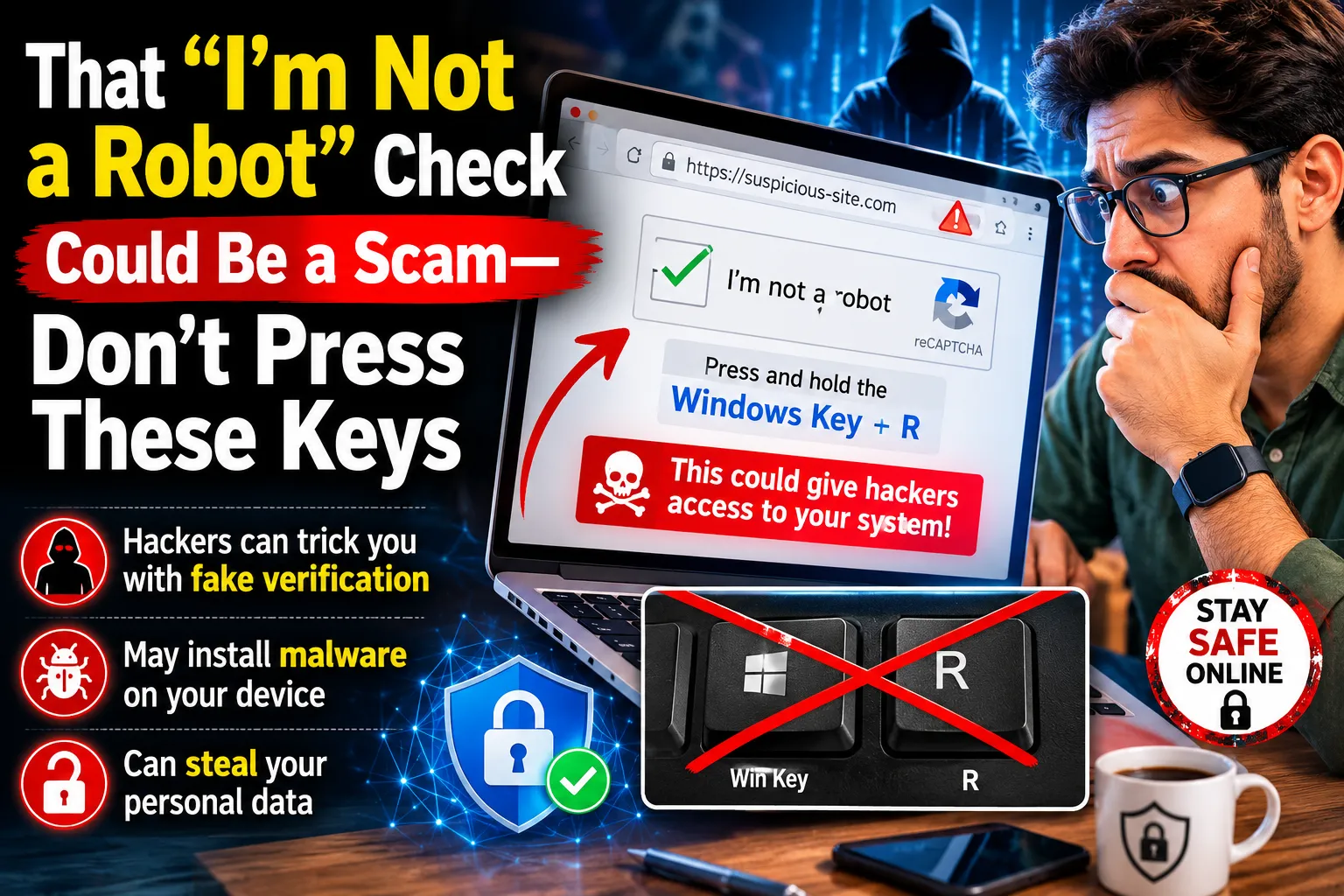
A fake CAPTCHA can trick you into installing malware on your own computer. The page may look like a familiar “I’m not a robot” verification, but its instructions ask you to open a system tool, paste hidden content and run it.
The Federal Trade Commission issued a consumer warning about this technique in June 2026. The agency’s message is straightforward: a legitimate CAPTCHA will not ask you to run commands on your device.
If a verification page tells you to press a combination of keyboard shortcuts, paste something or approve a script, close the page immediately.
What You Need to Know
- The fastest way to identify the scam
- How fake CAPTCHA malware works
- Real versus fake CAPTCHA checks
- Seven warning signs
- What to do if you followed the instructions
- Protection for businesses
- Frequently asked questions
Table of Contents
How Can You Tell If a CAPTCHA Is Fake?
A CAPTCHA is almost certainly malicious if it asks you to run a command, open a terminal, launch a system dialog or paste text copied to your clipboard.
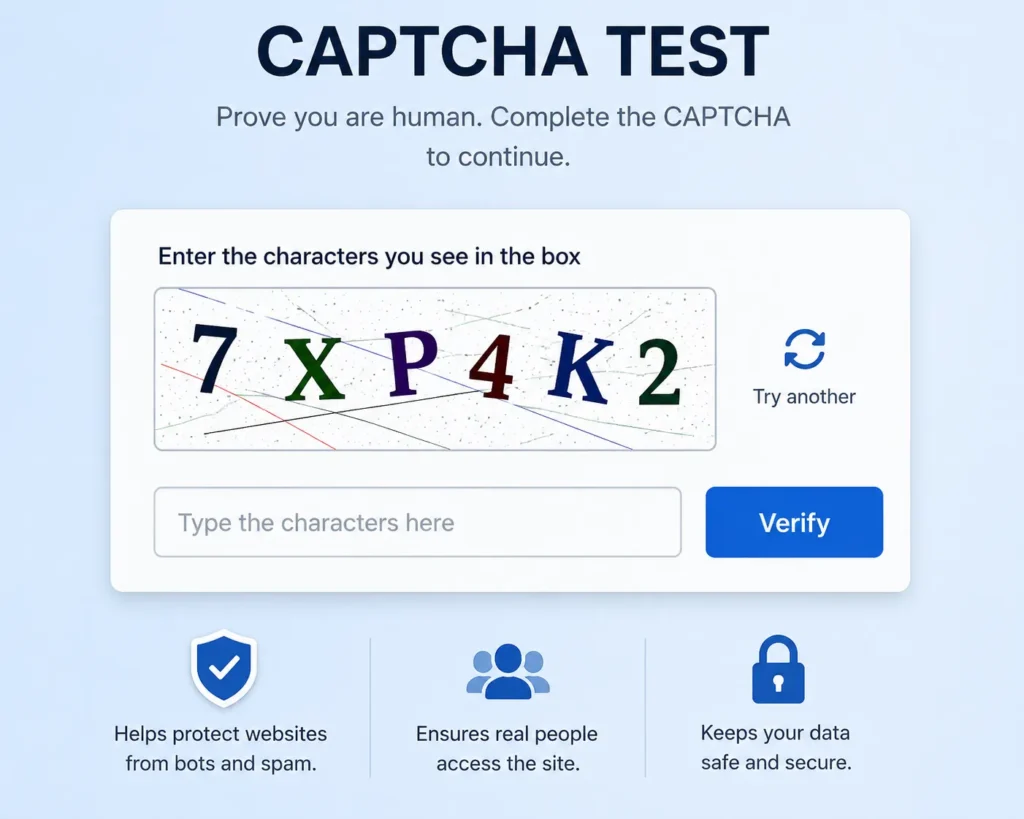
Normal CAPTCHA challenges may ask you to:
- Select matching pictures
- Type distorted letters or numbers
- Click a checkbox
- Move a puzzle piece
- Wait while the website verifies the browser
They should not instruct you to leave the browser and operate a Windows, macOS or Linux system tool.
Critical rule: Never paste an unknown command into a system utility merely because a website says it is required for verification.
Why Fake CAPTCHA Scams Are Convincing
CAPTCHA challenges are deliberately inconvenient. People are accustomed to following odd instructions to prove they are human.
Attackers exploit that familiarity.
The malicious page may copy:
- A recognizable verification checkbox
- A loading animation
- A security-company logo
- A “verification successful” message
- Technical language about browser security
- A familiar color scheme and page layout
The user assumes the unusual steps are part of a legitimate anti-bot process. In reality, those steps may execute malware.
How the Fake CAPTCHA Malware Attack Works
The attack is commonly associated with a social-engineering technique often called ClickFix. Instead of exploiting a software vulnerability directly, it persuades the victim to run the attacker’s instructions.
Stage 1: The Victim Reaches a Malicious Page
The page may be reached through:
- A phishing email
- A misleading search advertisement
- A compromised website
- A fake download page
- A fraudulent streaming website
- A social-media message
- A malicious browser notification
- A shortened or disguised link
Stage 2: A Fake Verification Appears
The page claims that the visitor must prove they are human, fix a browser error or complete a security check.
Stage 3: Malicious Content Reaches the Clipboard
The site may copy a command to the clipboard when the victim clicks a button. The copied content is not necessarily visible.
Stage 4: The Victim Is Told to Run It
The page displays keyboard instructions. These may lead the user to open a system utility, paste the clipboard content and execute it.
The user believes the command completes the CAPTCHA. It may instead download or launch malware.
Stage 5: Malware Attempts to Establish Access
Depending on the campaign, the malware may attempt to:
- Steal browser passwords
- Capture authentication cookies
- Access cryptocurrency wallets
- Record keystrokes
- Collect banking information
- Install remote-access tools
- Download additional malware
- Search files for sensitive information
The exact payload varies. The important point is that the victim’s action gives the malicious process an opportunity to run.
Real CAPTCHA vs. Fake CAPTCHA
| Behavior | Legitimate CAPTCHA | Fake CAPTCHA Scam |
|---|---|---|
| Runs inside the webpage | Normally yes | May send you to a system utility |
| Requests image selection | Common | May imitate this initially |
| Asks you to paste a command | No | Major warning sign |
| Asks you to open a terminal | No | Major warning sign |
| Claims a system command proves you are human | No | Common social-engineering tactic |
| Creates artificial urgency | Unusual | Common |
| Triggers an unexpected download | No | Possible |
| Works without leaving the browser | Normally yes | Often no |
Seven Warning Signs of a Fake CAPTCHA
1. It Asks You to Press Several Keyboard Shortcuts
A normal verification challenge does not need you to open operating-system tools.
If the page provides a sequence involving the keyboard, clipboard and a system dialog, stop immediately.
2. It Tells You to Paste Something You Cannot See
Clipboard content can contain commands, website addresses, scripts or other instructions.
Never paste unknown clipboard content into a program capable of executing it.
3. It Claims the Browser Must Be “Fixed”
The page may claim that verification failed because your browser, network or security certificate is broken.
This shifts the victim from completing a CAPTCHA to supposedly repairing a technical problem.
4. A Download Starts Unexpectedly
Close the page if a file begins downloading while you are completing a CAPTCHA. Do not open the file.
5. The Website Address Looks Wrong
Attackers often use domains containing:
- Misspelled brand names
- Extra words or hyphens
- Unusual domain endings
- Long strings of random characters
- Subdomains designed to hide the real domain
6. The Page Creates Urgency
Messages such as “Complete this now,” “Your account will be blocked” or “Verification expires in 30 seconds” are designed to prevent careful thinking.
7. The Instructions Feel More Technical Than the Task
Proving you are human should not require administrative tools, scripts or system-level commands.
Video: How Fake CAPTCHA Malware Tricks Users
This awareness briefing explains how fraudulent CAPTCHA prompts can lead users into running malware.
What a Real CAPTCHA Should Do
A CAPTCHA is intended to distinguish human activity from automated traffic.
Traditional challenges may require users to:
- Recognize objects in photographs
- Enter characters displayed in an image
- Complete a simple puzzle
- Interact with a checkbox
Modern systems may verify browser signals without showing a complex challenge. The verification still occurs through the website and browser.
A CAPTCHA provider does not need the user to run a system command to determine whether the visitor is human.
What to Do If You Followed the Fake CAPTCHA Instructions
Act immediately if you pasted and executed an unknown command. Do not assume you are safe because nothing visible happened.
1. Disconnect the Device From the Internet
Turn off Wi-Fi and disconnect the Ethernet cable. This may interrupt communication between the malware and its operator.
The FTC’s 2026 consumer alert recommends disconnecting from the internet as an immediate response.
2. Do Not Log In to Important Accounts
Avoid opening email, banking, cloud-storage or cryptocurrency accounts on the potentially infected device.
3. Use a Different, Trusted Device
From another device:
- Change the password for your primary email account.
- Change financial and business-account passwords.
- Enable multi-factor authentication.
- Sign out of unfamiliar or existing sessions where appropriate.
- Review account-recovery addresses and telephone numbers.
Prioritize email because access to a primary inbox can allow an attacker to reset passwords for other services.
4. Run a Reputable Security Scan
Use trusted security software from the operating-system provider or a reputable cybersecurity company.
Do not download a “cleanup tool” from an advertisement or pop-up. Search advertisements can also lead to malicious software.
5. Review Browser Extensions
Remove extensions you do not recognize. Check every installed browser, not only the one used when the incident occurred.
6. Examine Recent Account Activity
Look for:
- Unknown devices
- Unexpected password resets
- New forwarding rules in email
- Unauthorized payments
- Security settings you did not change
- Messages sent without your knowledge
7. Contact Financial Providers
If banking or card information may have been exposed, contact the bank through its official number. Ask about blocking transactions, replacing cards and monitoring the account.
8. Seek Professional Assistance
Businesses and high-risk users should involve a qualified IT or incident-response professional. In some cases, securely erasing and rebuilding the device may be safer than relying only on a malware scan.
Passwords May Not Be Enough After an Infection
Changing a password is important, but it may not remove every form of unauthorized access.
Some malware attempts to steal browser session cookies. A stolen session may allow an attacker to remain logged in without entering the newly changed password.
After a suspected infection:
- Use the account’s “sign out everywhere” feature.
- Remove unknown trusted devices.
- Revoke suspicious app access.
- Review active sessions.
- Regenerate backup codes if necessary.
For stronger account protection, read the ZOBUZ guide to passkeys and phishing-resistant authentication.
How to Avoid Fake CAPTCHA Pages
Keep Browsers and Operating Systems Updated
Updates close known security weaknesses and improve malicious-site detection.
Avoid Pirated Download and Streaming Websites
Sites offering unauthorized software, films or games frequently rely on aggressive advertising networks, redirects and fake verification pages.
Do Not Allow Notifications From Unknown Websites
Malicious browser notifications can repeatedly send fake security warnings and deceptive download links.
Use Bookmarks for Important Services
Open banking, email and administrative portals through a saved bookmark or known address rather than an advertisement.
Check the Domain Before Interacting
Look beyond the page design. Logos and layouts can be copied; control of the legitimate domain is harder to imitate.
Treat System Commands as High Risk
Do not execute a command obtained from an unfamiliar webpage, email, online advertisement or unsolicited support conversation.
How Businesses Can Reduce the Risk
Fake CAPTCHA campaigns are particularly dangerous in workplaces because one compromised computer may provide access to email, customer records and internal applications.
Block Unnecessary Script Execution
Restrict scripting tools where employees do not need them. Application-control policies can prevent unauthorized programs and commands from running.
Remove Local Administrator Access
Employees should not routinely operate with administrative privileges. This limits what malware can change after execution.
Use Endpoint Detection and Response
Security monitoring can identify unusual command execution, suspicious child processes and connections to known malicious infrastructure.
Provide Specific Awareness Training
Generic advice such as “do not click suspicious links” is insufficient. Show employees the exact behavioral warning:
A verification page should never ask you to run a command.
Protect Email and Administrative Accounts
Use phishing-resistant authentication for administrators, finance teams, developers and employees with access to sensitive systems.
Create a Simple Reporting Process
Employees should know whom to contact after a suspicious prompt. Early reporting can prevent an isolated incident from becoming a wider compromise.
Incident-Response Checklist for Organizations
| Priority | Action | Purpose |
|---|---|---|
| Immediate | Isolate the device from the network | Restrict external communication and lateral movement |
| Immediate | Preserve logs and alert the security team | Support investigation and containment |
| High | Revoke active sessions and tokens | Limit access through stolen cookies |
| High | Reset credentials from a clean device | Protect exposed accounts |
| High | Review email forwarding and app permissions | Find persistence mechanisms |
| Investigation | Identify the original URL and entry route | Block the source and find other affected users |
| Recovery | Rebuild the device when integrity is uncertain | Restore a trusted operating environment |
Should You Copy the Suspicious Command for Investigation?
Ordinary users should not paste, forward or test the command. Copying it into the wrong application could execute it accidentally.
Instead:
- Take a photograph or screenshot of the page.
- Record the website address without reopening it.
- Note the approximate time of the incident.
- Tell the security professional whether you executed the instructions.
- Leave technical collection to trained personnel.
Where to Report a Fake CAPTCHA Scam
People in the United States can report fraudulent CAPTCHA pages through ReportFraud.ftc.gov.
You can also:
- Report the page to the browser’s safe-browsing service.
- Notify the hosting provider where appropriate.
- Report malicious search advertisements to the search platform.
- Alert your company’s IT or security team.
- Contact a national cybercrime authority if money or sensitive information was stolen.
Users in Pakistan can report relevant cybercrime incidents through the country’s current official cybercrime-reporting channels. Confirm the correct government portal before submitting sensitive information.
Five-Second Safety Test
Before following a verification page, ask:
- Is the website address legitimate?
- Does the challenge stay inside the browser?
- Is it asking me to open a system tool?
- Is it asking me to paste hidden content?
- Did an unexpected file download?
If the answer to questions three, four or five is yes, stop and close the page.
Final Takeaway
A real CAPTCHA verifies activity inside the webpage. A fake CAPTCHA may try to turn you into the person who launches the malware.
Never run commands supplied by an unfamiliar website. If you already followed the instructions, disconnect the device, use a clean device to secure important accounts and begin a professional malware assessment.
The page’s polished appearance is not evidence that it is safe. Judge the requested action, not the design.
Explore more practical protection advice in the ZOBUZ technology section and the latest cybersecurity guides.
Frequently Asked Questions
What is a fake CAPTCHA scam?
It is a malicious verification page designed to resemble a normal CAPTCHA. It may instruct users to paste and execute a hidden command that downloads or launches malware.
Can clicking “I’m not a robot” install malware?
A normal CAPTCHA checkbox does not install malware. A fraudulent page may copy malicious content or lead to instructions that cause the user to execute it.
Will a real CAPTCHA ask me to open a command tool?
No. The FTC warns that legitimate CAPTCHA checks do not ask users to run commands on their devices.
What should I do after running a fake CAPTCHA command?
Disconnect from the internet, avoid logging into accounts on that device, run a reputable security scan and change important passwords from a clean device.
Should I change my passwords after a fake CAPTCHA attack?
Yes. Change important passwords from a trusted device, enable multi-factor authentication and revoke existing sessions because malware may have stolen session cookies.
Can fake CAPTCHA malware steal banking information?
Potentially. The malware installed through these campaigns may target browser passwords, financial details, authentication cookies, files or cryptocurrency wallets.
Does fake CAPTCHA malware affect Mac computers?
The specific instructions and malware vary by campaign. Users of any operating system should reject verification pages that request system commands or unknown downloads.
How can businesses block fake CAPTCHA attacks?
Businesses can restrict script execution, remove unnecessary administrator rights, deploy endpoint monitoring, use phishing-resistant authentication and train employees never to run commands supplied by verification pages.